Title here
Summary here
AI assistance
Some textual parts of the documentation here are AI-generated/AI-assisted. A human Adaptyst developer has verified everything here and made polishes wherever needed.
After running Adaptyst, you can analyse its results with a separate program called Adaptyst Analyser.
You must install the same modules you use in Adaptyst in Adaptyst Analyser. Each module comes with its Adaptyst Analyser part that can be set up by running:
adaptyst-analyser <path to the Adaptyst Analyser module directory>You can check the list of currently-installed modules in Adaptyst Analyser by running adaptyst-analyser -l.
The main functionality of Adaptyst Analyser is a web server serving the interactive website for browsing performance analysis results produced e.g. by Adaptyst.
The server can be started by running:
adaptyst-analyser <path to results>where <path to results> is the path to a directory containing result folders created e.g. by Adaptyst. For configuration options, see adaptyst-analyser --help.
adaptyst-analyser --helpusage: adaptyst-analyser [-h] [--version] [-a ADDR] [-s ADDR] [-t TITLE] [-b CSS] [--force-install] [-u] [-d] [-l]
[--password-stdin | --password-env]
[PATH]
Adaptyst Analyser web server
positional arguments:
PATH relative or absolute path to a performance analysis results directory to inspect or an Adaptyst Analyser module
directory to install
optional arguments:
-h, --help show this help message and exit
--version print version and exit
-a ADDR address and port to bind to, default: 127.0.0.1:8000
-s ADDR database to connect to for storing arrangements (use the SQLAlchemy database URL syntax), a user-local SQLite database
is created and used by default
-t TITLE custom title to be displayed alongside "Adaptyst Analyser" (e.g. if set to XYZ, the displayed entire title will be
"Adaptyst Analyser (XYZ)")
-b CSS custom background CSS of the website (syntax is the same as in "background" in CSS, do not use semicolons)
--force-install (re)install all core JavaScript dependencies even if they are already set up
-u update/reinstall the module if it is already installed
-d install the module in development mode
-l list in detail all installed Adaptyst Analyser modules
--password-stdin read database password from stdin (-s must be used)
--password-env read database password from the ADAPTYST_ANALYSER_DB_PASSWORD environment variable (-s must be used)When adaptyst-analyser is run, look out for an output line similar to this:
[2024-10-12 13:57:52 +0200] [2192] [INFO] Listening at: http://127.0.0.1:8000 (2192)The address points to the website where you can browse your profiling results.
Under the hood, Gunicorn and Flask are used (set up automatically when installing Adaptyst Analyser).
If you prefer not to use adaptyst-analyser or you cannot use it, set the FLASK_PROFILING_STORAGE environment variable to the path to a results directory and start the adaptystanalyser.app:app Flask app using a method of your choice.
While Adaptyst Analyser is designed with Adaptyst in mind, it can be used with any other profiler which produces result files in the Adaptyst format.
You can check the “Structure of results” box in Running Adaptyst and the source code of Adaptyst along with its open-source modules for learning how it formats its profiling results.
The website is a window-based system: you start with the main view which is able to host multiple internal windows. You can open as many windows as you wish and every window can be freely moved, resized, and collapsed (by clicking the eye icon in a title bar). All windows persist across performance analysis sessions (so you can e.g. open two windows side-by-side from two different sessions).
After opening the website, follow these two steps:
See the video demo below showing some performance analysis results of two ROOT code snippets (before and after heterogeneous-computing-related optimisations). The version of Adaptyst Analyser presented there is 0.1.0.dev4, before the license change to GNU LGPL v3+. The modules featured are linuxperf and nvgpu. Window arrangements are not demonstrated here, see the section below instead.
Window tips
To share easily performance analysis results or parts of it with others, you can either generate a session link or use window arrangements:
To generate a session link, click the share button in the website header to open the share menu and select “Get session link” there. Adaptyst Analyser will then open a window containing a link to the session which is currently loaded.
To save a window arrangement, click the share button in the website header to open the share menu and select “Save window arrangement” there. Enter a unique name or leave the name empty to make the server generate a human-friendly one automatically. Afterwards, Adaptyst Analyser displays an update token and opens a window containing a link to the arrangement. The token is shown once only, so save it in a safe place!
If you want to save a single window arrangement, click the share icon in the title bar of a window you’d like to save, then give a name for your arrangement or leave it empty to make the server generate a human-friendly one. Afterwards, as for window arrangements, Adaptyst Analyser displays an update token and opens a window containing a link to the arrangement.
Click the “Open a saved arrangement” icon in the website header to browse saved arrangements. The list can be searched, filtered by arrangement type, and sorted.
Arrangements are stored in a database: by default, Adaptyst Analyser uses an automatically-created user-local SQLite database. If you want, you can point Adaptyst Analyser to a different database by running it with -s: use
the SQLAlchemy syntax there. A database password can be provided either as part of an SQLAlchemy database URL, through standard input (use --password-stdin for this), or through the ADAPTYST_ANALYSER_DB_PASSWORD environment variable (use --password-env for this).
Adaptyst Analyser checks the fingerprint of every performance analysis session referenced by an arrangement before opening it. If any session is missing or recently-changed, an error is thrown.
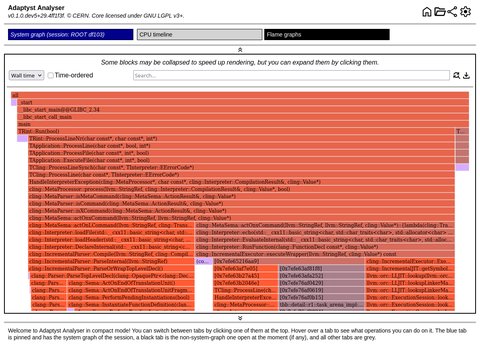
When a session or an arrangement is loaded in Adaptyst Analyser through a custom link, you can use the compact mode: this version of the interactive website is more friendly towards smaller screen sizes and embedding via iframe. Mobile phones are not supported though.
The figure below shows an example of a session opened in the compact mode: tabs are used instead of windows and the header/footer is accordingly smaller and can be hidden (also by default if this is provided in the link). The full size of the screenshot can be found here.
For more information, see Interactive website URL parameters.
Adaptyst Analyser can be imported as a Python package to inspect performance analysis results and export data without starting its web server.
The usual flow is:
Session object for a given result.Window.save_arrgmt(), and build a web link that a user running the same
Adaptyst Analyser web server can open to get these windows at the interactive website.The examples below use a real-world Adaptyst performance analysis session performed with linuxperf on ROOT (commit b7bf155) running df103_NanoAODHiggsAnalysis.C (no JIT symbols are present). The session archive can be downloaded here.
Session loads a given result directory, including its system graph.
The entities, nodes, edges, and modules can then be traversed directly
as Python objects:
from pathlib import Path
from adaptystanalyser import Session

result_path = Path("results/root_df103")

# Load the result.
session = Session(result_path)

# Iterate over all entities and their nodes in the system graph.
entities = session.get_entities_iterable()
nodes = [node
         for entity in entities
         for node in entity.get_nodes_iterable()]

print("session:", session.identifier)
print("entities:", sorted(entity.name for entity in entities))
print("nodes:", [f"[{node.entity.name}] {node.name}" for node in nodes])session: ROOT df103 (2026-07-02 14:41:48)
entities: ['xyz']
nodes: ['[xyz] abc']You can also look graph elements up directly by their name:
entity = session.get_entity("xyz")
node = entity.get_node("abc")
linuxperf = node.get_module("linuxperf")

print("module:", linuxperf.get_name())module: linuxperfImportant
The by-name query methods return None when the corresponding graph elements
don’t exist!
When a Session object is constructed, Adaptyst Analyser imports every module used
by the session. However, result data are loaded lazily, so potentially expensive
module setup work is performed only when first actual queries are made or
even later (depending on how modules are implemented).
Please consult the documentation of specific modules for information about how you can process data obtained by them via the Python API (in case of this example: linuxperf).
Modules can provide Python objects corresponding to windows/tabs in the interactive website. For example, this code exports the timeline window of the linuxperf module (it should be read together with the previous snippets):
from adaptystanalyser import Window

# Ask linuxperf for a window displaying the process/thread timeline.
timeline_window = linuxperf.get_timeline_window()

# Serialise the window and save the arrangement.
arrangement_id, update_token = Window.save_arrgmt(
    timeline_window,
    name="root-df103-timeline",
)

# get_arrgmt_url() returns a URL suffix for an Adaptyst
# Analyser web server.
#
# "http://127.0.0.1:8000" is just an example, use your web
# server address instead.
url = "http://127.0.0.1:8000" + Window.get_arrgmt_url(arrangement_id)

print("arrangement:", arrangement_id)
print("URL:", url)
print("update token:", update_token)arrangement: 1
URL: http://127.0.0.1:8000/?arrgmt=1&compact=1&hide_header=1&hide_footer=1
update token: (token)By default, Window.save_arrgmt() connects to
the user-local SQLite database created automatically under the hood (a different
database can also be used: see the Window.save_arrgmt() docstring).
If name is omitted, Adaptyst Analyser generates a random human-friendly name
and returns it as a third tuple element. Store the update token securely:
it is needed to rename or delete the arrangement and cannot be retrieved later.
Passing a single window object creates a single window arrangement while passing a list of window objects creates a window arrangement. If you decide to make a window arrangement, remember to include all necessary dependencies in the list.
For the URL to work, run the Adaptyst Analyser web server pointing to the same database and parent results directory.
The complete Python API reference can be found here.
The Adaptyst Analyser web server exposes an HTTP API alongside its interactive website. It can retrieve a session’s system graph, send requests to an Adaptyst Analyser module, and save or retrieve window arrangements.
POST parameters are read from form fields. A JSON request body is not supported. Responses containing JSON should be parsed as JSON even when the server does not set a JSON content type.
GET /get/<session>/Returns the system graph for a performance analysis session <session>, where
<session> is the name of a result directory inside the path defined when
starting the Adaptyst Analyser instance.
| Name | Value type | Required | Description |
|---|---|---|---|
<session> | URL-encoded string | Yes | Name of the performance analysis session directory. |
The successful response is a JSON object in the Sigma.js/Graphology import format:
{
  "entities": {
    "<name of the entity>": ["<exit status code of the entity>", "<colour assigned to the entity>"]
  },
  "system": {
    "options": {
      "allowSelfLoops": false,
      "multi": false,
      "type": "directed"
    },
    "nodes": [
      {
        "key": "<unique key of the node>",
        "attributes": {
          "x": "<horizontal coordinate of the node>",
          "y": "<vertical coordinate of the node>",
          "label": "<label displayed for the node>",
          "server_id": "<identifier of the node on the server>",
          "size": 40,
          "color": "<colour assigned to the entity>",
          "entity": "<name of the entity>",
          "backends": [["<name of a module used>", "<version of the module used>"]]
        }
      }
    ],
    "edges": [
      {
        "key": "<unique key of the edge>",
        "source": "<unique key of the edge's source node>",
        "target": "<unique key of the edge's target node>",
        "undirected": false,
        "attributes": {
          "label": "<label displayed for the edge>",
          "size": 10
        }
      }
    ]
  }
}
entities maps each entity name to [exit_code, colour]. Each node’s
backends lists what Adaptyst modules were used along with their versions
so that corresponding Adaptyst Analyser modules can be deployed.
Node coordinates are generated for the response and should not be
considered persistent layout data.
In future versions of Adaptyst Analyser, backends may be present also
in edges.
The HTTP status codes are as follows:
| Status | Meaning |
|---|---|
| 200 | The session was found and its graph was returned. |
| 404 | The session directory was not found. |
POST /process/<session>/<entity>/<analysable>/<module>Forwards a form request to a module for a node or edge in a session. This is used to query or update module-specific analysis results.
| Name | Value type | Required | Description |
|---|---|---|---|
<session> | URL-encoded string | Yes | Performance analysis session directory name. |
<entity> | URL-encoded string | Yes | ID of an entity from the system graph. |
<analysable> | URL-encoded string | Yes | ID of a node or edge in the entity. |
<module> | URL-encoded string | Yes | Module name listed in the target’s backends. |
The allowed form fields, their meaning, and the response format are defined by the target module: please consult its documentation.
The HTTP status codes are as follows:
| Status | Meaning |
|---|---|
| 200 | The module processed the request. The response format is module-specific. |
| 404 | The session, entity, analysable, or module was not found, or the module raised Python ValueError. |
The module may return a status code different from the ones above: see its documentation if needed.
POST /process/<session>/<analysable>/<module>This will be fully supported in future versions of Adaptyst Analyser, once the support for inter-entity edges is implemented.
POST /arrgmtManages saved window arrangements. Every request needs a type form field;
the remaining fields depend on its value. Arrangement data is the JSON
serialisation of an Adaptyst Analyser window arrangement: this can be produced
on the web client side by calling Window.serialize() in JavaScript
(see
Module development) or in the
Python API by calling
Window.get_arrgmt_json().
Use type=check_name to test whether an arrangement with a given name already exists.
| Name | Value type | Required | Description |
|---|---|---|---|
type | String: check_name | Yes | Request operation. |
name | String | No | Arrangement name to test. |
The response is a JSON object in the following format:
{"exists": "<true if an arrangement with this name exists, otherwise false>"}When name is omitted, the response is always {"exists": false}.
Use type=save to create an arrangement. A successful save returns the
update token. Store it securely because it cannot be retrieved later.
| Name | Value type | Required | Description |
|---|---|---|---|
type | String: save | Yes | Request operation. |
data | String containing a JSON object | Yes | Window arrangement serialisation. |
name | String | No | Unique arrangement name. Omit it to generate a human-friendly name. |
With an explicit name, the response is:
{
  "id": "<identifier of the saved arrangement>",
  "token": "<token required to rename or delete the arrangement>"
}
When name is omitted, the response additionally contains the generated name:
{
  "id": "<identifier of the saved arrangement>",
  "name": "<human-friendly name generated by the server>",
  "token": "<token required to rename or delete the arrangement>"
}Use the update token returned by save to rename an arrangement.
| Name | Value type | Required | Description |
|---|---|---|---|
type | String: edit_name | Yes | Request operation. |
name | String | Yes | Current arrangement name. |
new_name | String | Yes | New unique arrangement name. |
token | String | Yes | Update token. |
A successful response is the empty JSON object {}.
Use the update token returned by save to delete an arrangement.
| Name | Value type | Required | Description |
|---|---|---|---|
type | String: delete | Yes | Request operation. |
name | String | Yes | Arrangement name. |
token | String | Yes | Update token. |
A successful response is the empty JSON object {}.
Use type=get with exactly one of id or name. The response is the exact
JSON arrangement serialisation supplied when it was saved.
| Name | Value type | Required | Description |
|---|---|---|---|
type | String: get | Yes | Request operation. |
id | Integer | Yes: either id or name | Arrangement identifier. |
name | String | Yes: either id or name | Arrangement name. |
Before returning an arrangement, the server verifies fingerprints of the sessions referenced by it. If a referenced session is missing or has changed, the response is:
{"session_invalid": "<name of the missing or changed session>"}Behaviour in case of multiple invalid sessions
If several sessions are missing or recently-changed, only the first encountered erroneous session is reported.
Otherwise, the response is the JSON arrangement serialisation supplied in the
data field when the arrangement was saved.
Use type=list to obtain arrangement metadata with optional filtering,
pagination, sorting, and type selection.
| Name | Value type | Required | Description |
|---|---|---|---|
type | String: list | Yes | Request operation. |
search | Regex string | No | Filter arrangement names using a regex. Omit it to disable regex filtering. |
limit | Integer | No | Maximum results per page. Defaults to 10. |
page | Integer | No | Page number. Defaults to 1. |
sort | String: one of last_update_desc, last_update_asc, name_desc, name_asc | No | Result order. Defaults to last_update_desc. |
types | String: one of W, SW, both | No | Arrangement type filter. W means “window arrangement” and SW means “single window arrangement”. Defaults to both. |
The response is a JSON object in the following format:
{
  "general_total_cnt": "<total number of matching arrangements>",
  "general_total_pages": "<total number of result pages>",
  "list": [
    {
      "id": "<identifier of the arrangement>",
      "name": "<name of the arrangement>",
      "type": "<W for a window arrangement or SW for a single window arrangement>",
      "last_update": "<date and time when the arrangement was last updated>"
    }
  ]
}| Status | Meaning |
|---|---|
| 200 | The request succeeded. |
| 400 | type or a required field is missing, the request type is unknown, or list parameters are invalid. |
| 403 | The update token for a rename or delete request is missing or invalid. |
| 404 | The requested arrangement does not exist. |
| 409 | Saving with an existing name or renaming to an existing name was attempted. |
| 422 | An arrangement was found, but a session it references is unavailable or has changed. The response identifies that session in session_invalid. |
GET / points to the interactive website and is separate from the REST API, but its query
parameters can be useful when linking to an arrangement or a session:
| Name | Value type | Required | Description |
|---|---|---|---|
session | String | No | A session in the viewer to be opened. |
arrgmt | Integer | No | The identifier of an arrangement to be opened. |
compact | 1 | No | Whether compact mode should be enabled: set it to 1 for yes or omit it for no. If yes, a session or arrangement is required. |
hide_header | 1 | No | Whether the header should be hidden by default in compact mode: set it to 1 for yes or omit it for no. |
hide_footer | 1 | No | Whether the footer should be hidden by default in compact mode: set it to 1 for yes or omit it for no. |
For example, http://127.0.0.1:8000/?arrgmt=42 opens arrangement with ID 42 in
a web browser.